| Batch Reports |
 |
You can select a batch report for any report you have created with the Report Management tool. A Default batch summary report is provided if you do not have any custom reports created.
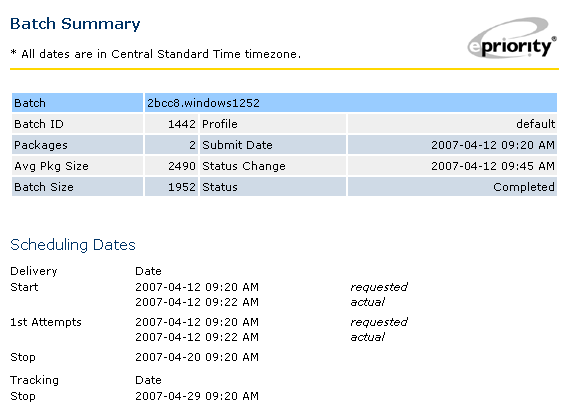
The Default batch summary report provides an overview of batch statistics and dates,
detailed totals of all delivery events and the status of the batch.
Note that delivery log processing takes place every 15 minutes, so there may be
a maximum 15 minute delay in batch report information.
Default Batch Summary Report
An overview of batch statistics is listed at the top of each report. The Delivery Stop date is the date (set in the delivery profile) when all undelivered email will expire, thus no more deliveries will be attempted. The Track Stop date is the date (set in the delivery profile) after which any logging for the batch will be dropped. Sometimes a permanent failure (hard bounce), will be issued from a recipient mail server weeks after the email was delivered; these are normally the only logs that would be dropped after the Track Stop date.The batch status may be one of the following:
| Detected | The batch has successfully been uploaded and detected by ePriority. | |
| Queued | The batch is in the processing queue and will be picked up in the order it was received. | |
| Processing | Emails are being generated from the batch file. | |
| Failed | Email generation failed. No deliveries will occur. | |
| Generated | Emails have successfully been generated and are ready for delivery. | |
| Delivering | Email delivery has begun. | |
| Redelivery | Deliveries for all emails have been attempted at least once. Unsuccessful deliveries are being re-attempted. | |
| Completed | Email delivery is finished. Either all emails have been delivered successfully or some emails have expired because the Delivery Stop date has been reached. |
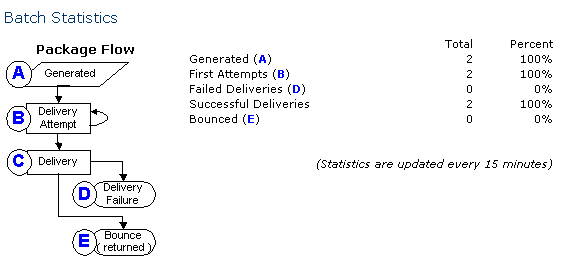
The General Statistics section shows an overview of the delivery events for the batch.
The data is updated every 15 minutes, so a small delay will occur between an event
and its listing on the report.
The temporary delivery failures (soft bounces) can be
determined by subtracting the Delivery (C) total from the First Attempts (B) total. Delivery
re-attempts will be made on these emails until they are delivered successfully or until
the Delivery Stop date is reached and the emails are expired.
A delivery Failure (D) occurs when a recipient mail server cannot be reached before the
Delivery Stop date or when an email is rejected by the recipient mail server, usually
because of an unknown address. If a delivery is accepted by the recipient mail server,
it is counted as a delivery Success. Note that the Success total will drop by 1 whenever
a delivery Bounce (E) is received by ePriority from a recipient mail server. This indicates
that an email that was previously accepted by the recipient mail server (delivery Success)
has now been returned (delivery Bounce). This can occur because a mailbox is full or inactive,
or because the address was not found (the same reason that causes a delivery Failure from
some recipient mail servers).
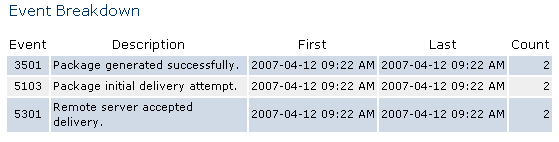
The event breadown lists the totals for all events that have occurred during the lifecycle of a batch. Each event code has a link to the event desription at the bottom of the Report.
To select a batch report:
- Select the 'Batches' link from the main menu.
- Select the desired report from the 'Report:' drop-down menu.
- Select the appropriate batch name link for the report you would like to view.