| Batch Mailer Tool |
 |
The Batch Mailer is an online tool that can be used to compose ad-hoc, single-content mailings. A single-content mailing is a mailing that sends the same content to all the specified recipients. Several pieces of information must be supplied to use the Batch Mailer. Information such as, a list of recipients and message content files can be uploaded from a users computer. Other information can be specified such as choosing an existing Delivery Profile and supplying a From Name, From Address, and a Subject line for the mailing. Below are more details on composing a mailing using the online Batch Mailer.
The Batch Mailer, as its name implies, allows users to create a batch online.
However, users need to know virtually nothing about the batch creation process.
Instead, they need to supply only information required to send out a message to
a list of recipients, namely some content, a subject, and who the message is from.
Below are details on each field that is can be specified when composing a
mailing using the online Batch Mailer.

Client Batch ID (CBID)
This is the name of the new batch. It is used in ePriority along with a
client Id (CID) to uniquely identify a batch. Since CBID is the name of the
batch, it is also the name of the batch file that is submitted to the
ePriority service. Therefore, it has it has a few restrictions on how it can
be named, but this is the only place where users need to know some
information about the batch creation process.
The CBID may be up to 35 characters in length, may be composed of letters (upper and lower case), digits, periods, underscores, hyphens, plus signs, equal signs, and colons. However, it cannot contain any spaces and must start with either a letter or a digit.
Address List
The Address List is used to specify the email addresses of intended
recipients of the message. In addition, the Address List can optionally
contain personalization data for each address that it contains. Common uses
of this data include recipient name, mailing address, or even account
numbers. This personalization data can be used in conjunction with form
letter content to produce a personalized message for each recipient.
The format for the Address List is a Comma-Separated Values (CSV) file. CSV is simply another name for the comma-delimited format of data representation. In a CSV file, each column value is separated by a comma from the next column's value and each row starts a new line. Many times a CSV file will define the names of the columns that it specifies in the first row.
In the Address List CSV file, there is only one required column, "address", which specifies a recipient's email address. Another reserved but optional column called "cpid" may be used to define the client package id used for each email message (a default number will be assigned by epriority if no cpid field/value is found). Two optional client package id's can be used for each mail message as well: "cpid2" and "cpid3"
Additionally, the following columns may also be defined: "from_address", " from_name", "subject", "reply_address", "reply_name" These columns will be used as the Message Defaults if desired.
Finally, the following column MUST be defined if the Profile selected has Secure Messaging turned on: "secure_key"
For example,
      address,cpid,firstname,lastname,ssn,notes
      johndoe@pdc.com,123abc,"John","Doe",123-45-6789,"hates spam"
Any fields beyond "address" and "cpid" may be included for use in personalizing email content. All text based content (HTML included) will be processed by replacing any fieldname with its value for each recipient.
The CSV file is specified for a batch by uploading it from a user's local computer.
CSV Errors
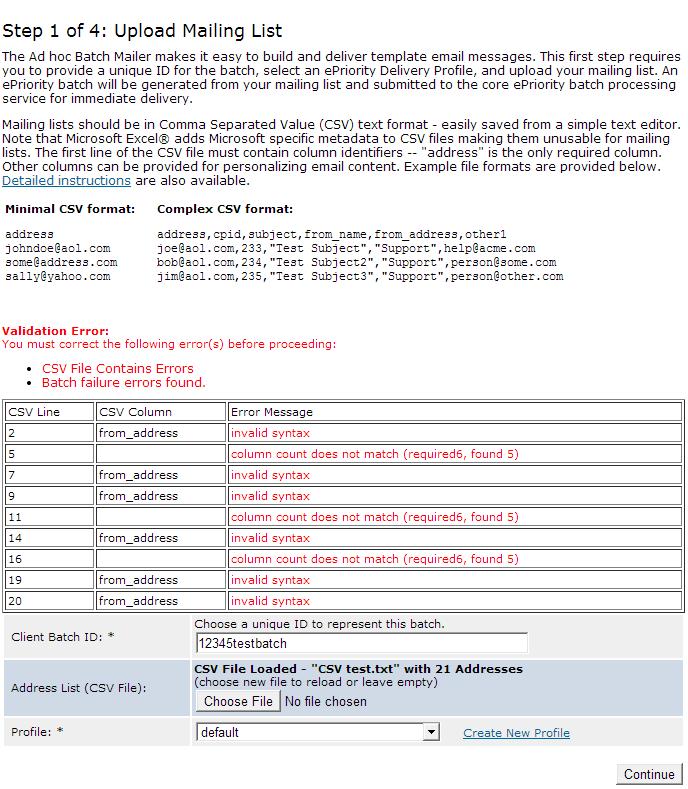
In case a CSV file contains errors, the CSV is checked and the user is notified of
any errors. If the CSV file contains errors that will cause a batch failure, the
errors are displayed so that the user can repair the CSV file and upload again.
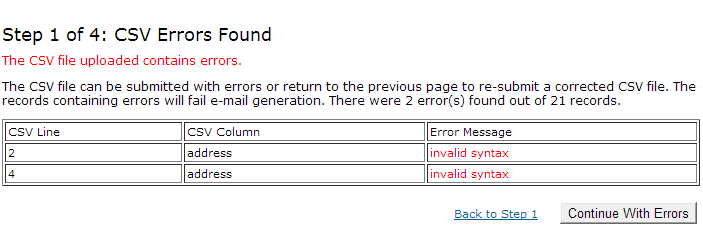
If the errors will result in a few individual e-mail failures, then the row numbers
of the erroneous CSV lines are displayed and the user is presented with the option
to continue using the CSV file with the errors or to go back and re-submit
with a corrected CSV.
Delivery Profile
A Delivery Profile must be specified by selecting one from a list of
existing profiles. The profile will be used to define what ePriority
features will be applied to this mailing.
Subject
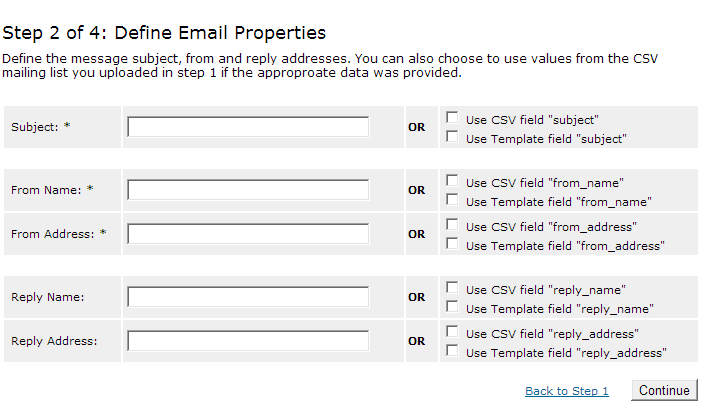
The subject of the mailing. This value will appear in the Subject field of
all messages in the batch. You may choose to supply this value in the CSV with
the following field: "subject". This value is required. You must either
supply the subject, specify to Use CSV field "subject", or use information
from your profile's Template. You cannot use more
than one of the options listed.
From Name
The name of the person sending the message. This value is the name to
display with the sender's address and will appear in the From field of all
messages in the batch. You may choose to supply this value in the CSV with the
following field: "from_name". This value is required. You must either
supply the name, specify to Use CSV field "from_name", or use information
from your profile's Template. You cannot use
more than one of the options listed.
From Address
The email address of the person sending the message. This value will
appear in the From field of all messages in the batch along with From Name.
Note that this field must be a fully qualified Internet address (e.g.,
johndoe@pdc.com). You may choose to supply this value in the CSV with the
following field: "from_address". This value is required. You must either
supply the address, specify to Use CSV field "from_address", or use information
from your profile's Template. You cannot
use more than one of the options listed.
Reply Name
The name of the person who will receive any replies to the message. This
value is the name to display with the reply address and will appear in the
Reply-To field of all messages in the batch. You may choose to supply this value
in the CSV with the following field: "reply_name". This value is optional.
You may either supply the name, specify to Use CSV field "reply_name", or
use information from your profile's Template.
You cannot use more than one of the options listed.
Reply Address
The email address of the person who will receive any replies to the message.
This value will appear in the Reply-To field of all messages in the batch
along with Reply Name. Note that this field must be a fully qualified
Internet address (e.g., johndoe@pdc.com). You may choose to supply this value in
the CSV with the following field: "reply_address". This value is optional.
You may either supply the address, specify to Use CSV field "reply_address",
or use information from your profile's Template.
You cannot use more than one of the options listed.
Note - in the absence of Reply Address, any replies to the message will go to the From Address.
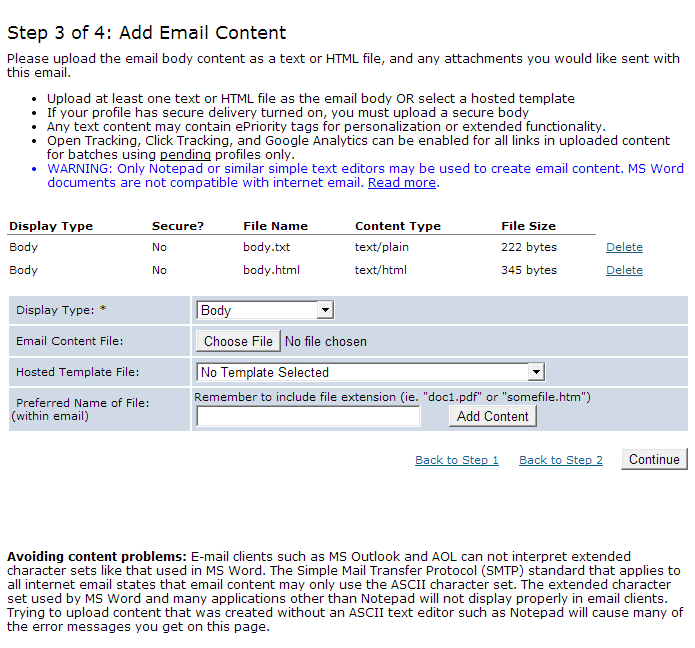
Uploaded Content
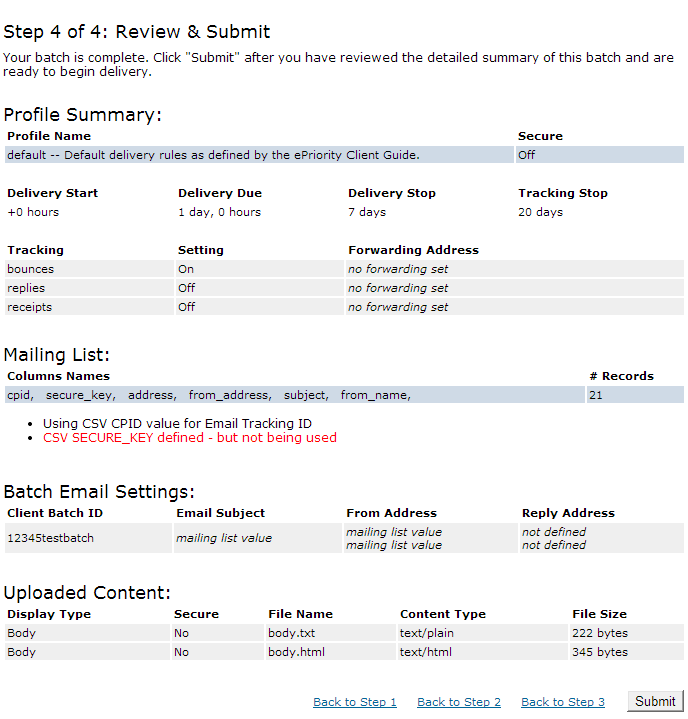
Once content has been uploaded, a list of uploaded content will be displayed.
The user is given the ability to remove any piece of content from the list by clicking
on Delete.
Content Parts are the actual content that is used to create messages in a batch. Each content part will have a content type specified. The content types that can be specified for a content part are; Body, Attachment, Inline, Secure Body and Secure Attachment.
When a content part is declared to be "Body", it will be used as the message body. More than one content part can be specified as a body part. All of the bodies are assumed to carry the same information, only with different formatting. When a mail reader opens a multi-body message, it displays only one of the parts and ignores the rest. Even though the content of the body parts contains the same information, albeit in different formats, their order is important. Users should always specify the simplest body type (i.e., text) first and follow with more complex alternative bodies (i.e., HTML, etc.). A common use of specifying multiple bodies is to send both text and HTML versions of a message to all recipients. This way, the message can be viewed by all recipients whether they have HTML-capable email readers or not.
When a content part is declared to be an "Attachment", it will be used as an attachment. If there are multiple bodies and at least one attachment, the content parts containing the bodies will be the first "document" in the message and the attachments will be appear in the order they are specified. Almost any file can be attached to a message. Images and documents such as Portable Document Format (PDF) documents, are commonly used as attachments to messages.
Specifying Inline for a content part designates that content to be embedded within another piece of content (i.e., an HTML body part). One of the advantages of using HTML for a message body as opposed to plain text is the ability to embed images and other related content directly in the message. This makes the message "self-contained", so that it needs no outside resources to be properly displayed. This also makes it possible to view a message in its entirety, offline, after it has been downloaded.
When a content part is declared to be "Secure Body", it will be used as the message body of a secure attachment that will be generated if and only if the Profile specified has "Secure Messaging" turned on. One and only one "Secure Body" should be specified. Mailings with more than one "Secure Body" declared will be rejected by the batch processing application. It is recommended that a "Secure Body" be (HTML) and contain relative links to any "Secure Attachment"(s) that may be declared.
When a content part is declared to be "Secure Attachment", it will be used as a secure part of a secure attachment that will be generated if and only if the Profile specified has "Secure Messaging" turned on. Multiple "Secure Attachment"(s) are allowed.